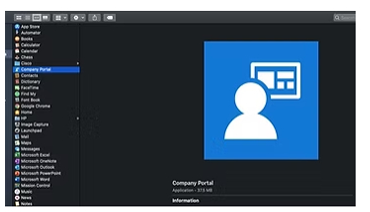
- Install Company Portal app from the Application store
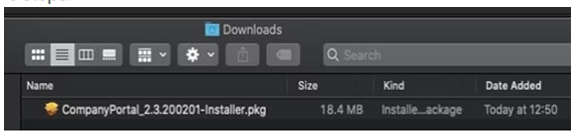
- The Company Portal installer dmg file will download. Open the installer and continue through the steps.
- Agree to the software license agreement.
- Enter your device password or registered fingerprint to install the software.
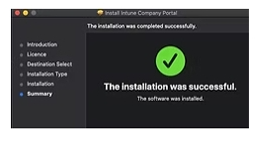
- Open Company Portal
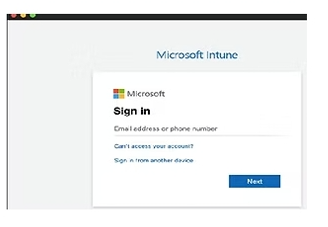
- Sign into Company Portal with your work or school account
- When the app opens, select Begin
- Review what your organization can and can’t see on your enrolled device. Then select Continue
- On the Confirm device management screen, select Open System Preferences
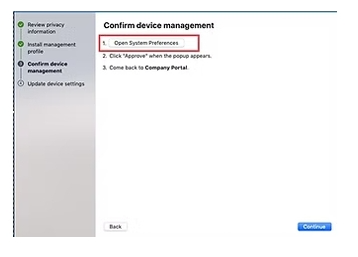
- Your device’s system preferences will open.
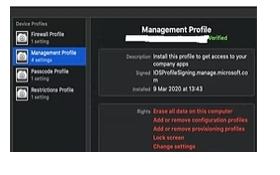
Select Management Profile from the device profiles list and then select Approve > Approve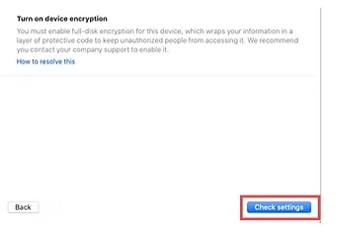
- Your organization might require you to update your device settings. When you’re done updating settings, select Check settings
- When setup is complete, select Done